MatwingsVenus™ User Manual
1. Platform Overview
MatwingsVenus™ is a conversational protein engineering intelligent collaborative platform for global research and industrial users. Relying on a multi-agent collaborative architecture, the platform integrates tens of billions of biological big data, advanced AI prediction models, wet-lab experiment automation delivery, and expert decision support, committed to creating an R&D closed loop from "design by conversation" to "delivery by experiment".
Protein directed evolution and functional modification
New functional protein discovery
Molecular docking simulation and interaction analysis
AI-driven protein design and sequence optimization
Biological sequence and structure retrieval
Protein structure and property prediction
Multi-dimensional visualization of experimental results
Automated dry and wet lab validation
Domain expert online collaborative support
The system supports real-time structure generation, structured data input/output (PDB/CSV/images, etc.), aiming to simplify data collection, model fine-tuning, and functional analysis for biologists and AI researchers.
2. Quick Start
2.1 Registration and Login
2.1.1 Register Account
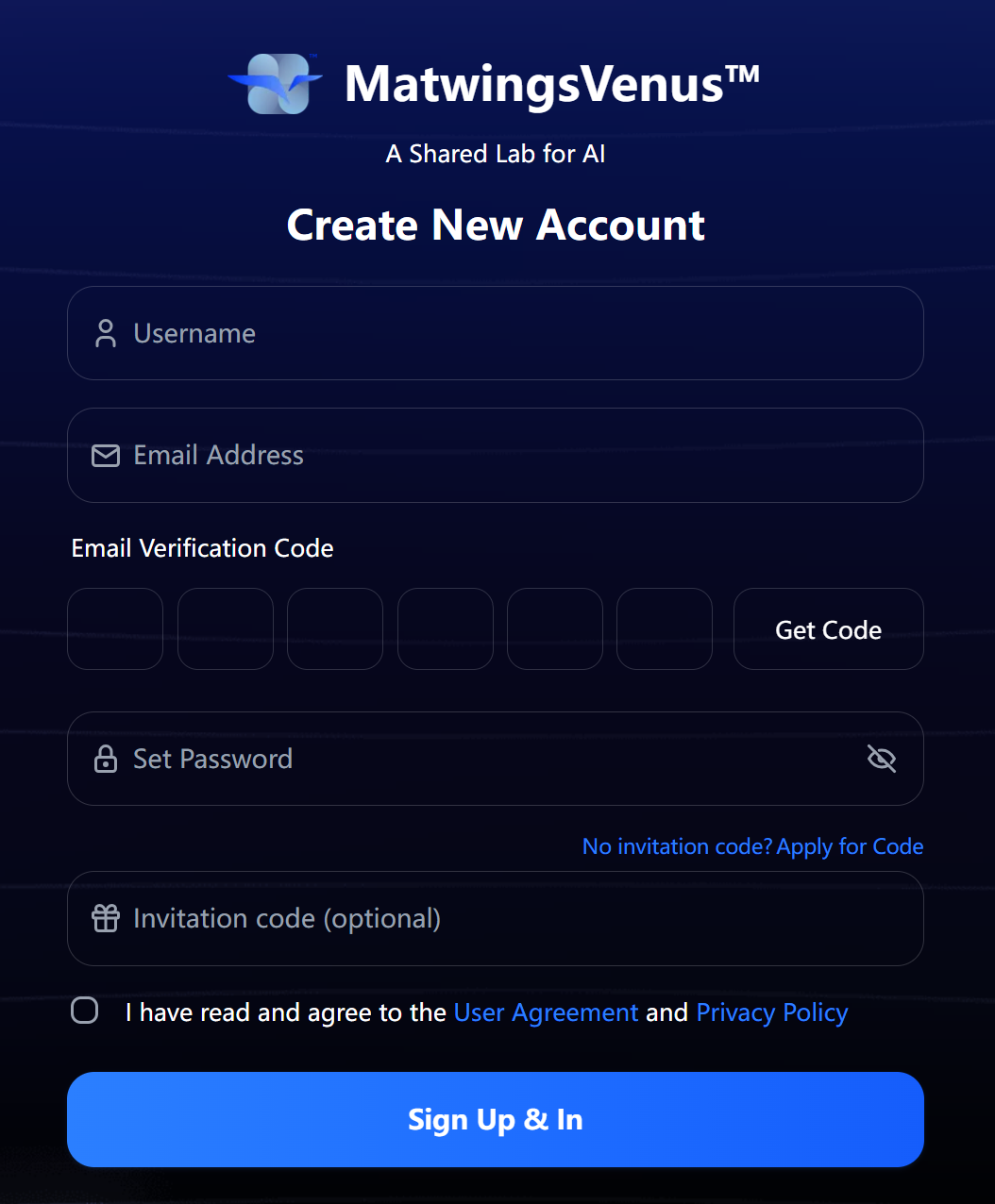
Step 1: Enter Email
Enter your email address on the registration page
Click the "Send Verification Code" button
The system will automatically detect your email language and send a verification email in Chinese or English
Step 2: Verify Email
Check the 6-digit verification code in your email
Enter the verification code on the registration page
The verification code is valid for 5 minutes
Step 3: Complete Registration
Set your username (unique)
Set a password (at least 8 characters)
Enter an invitation code (optional; can be obtained from existing users; after successful invitation, both parties can receive points rewards)
Click "Register" to complete account creation
2.1.2 Login Account
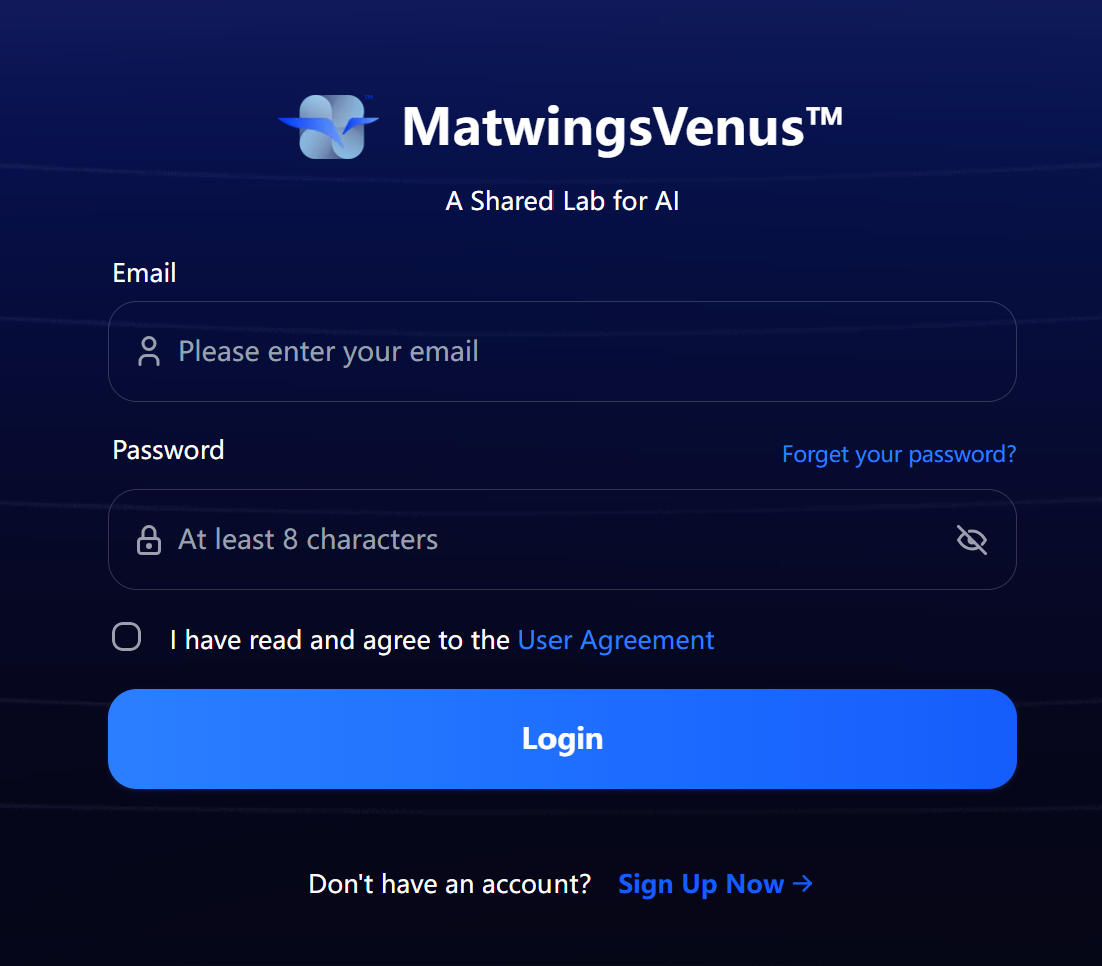
Enter the email address used for registration
Enter the password
Click "Login"
Note: After logging in, the system will automatically keep the login status for 1 hour, after which you need to log in again.
3. Usage Instructions
Click Start Use to begin your MatwingsVenus™ journey
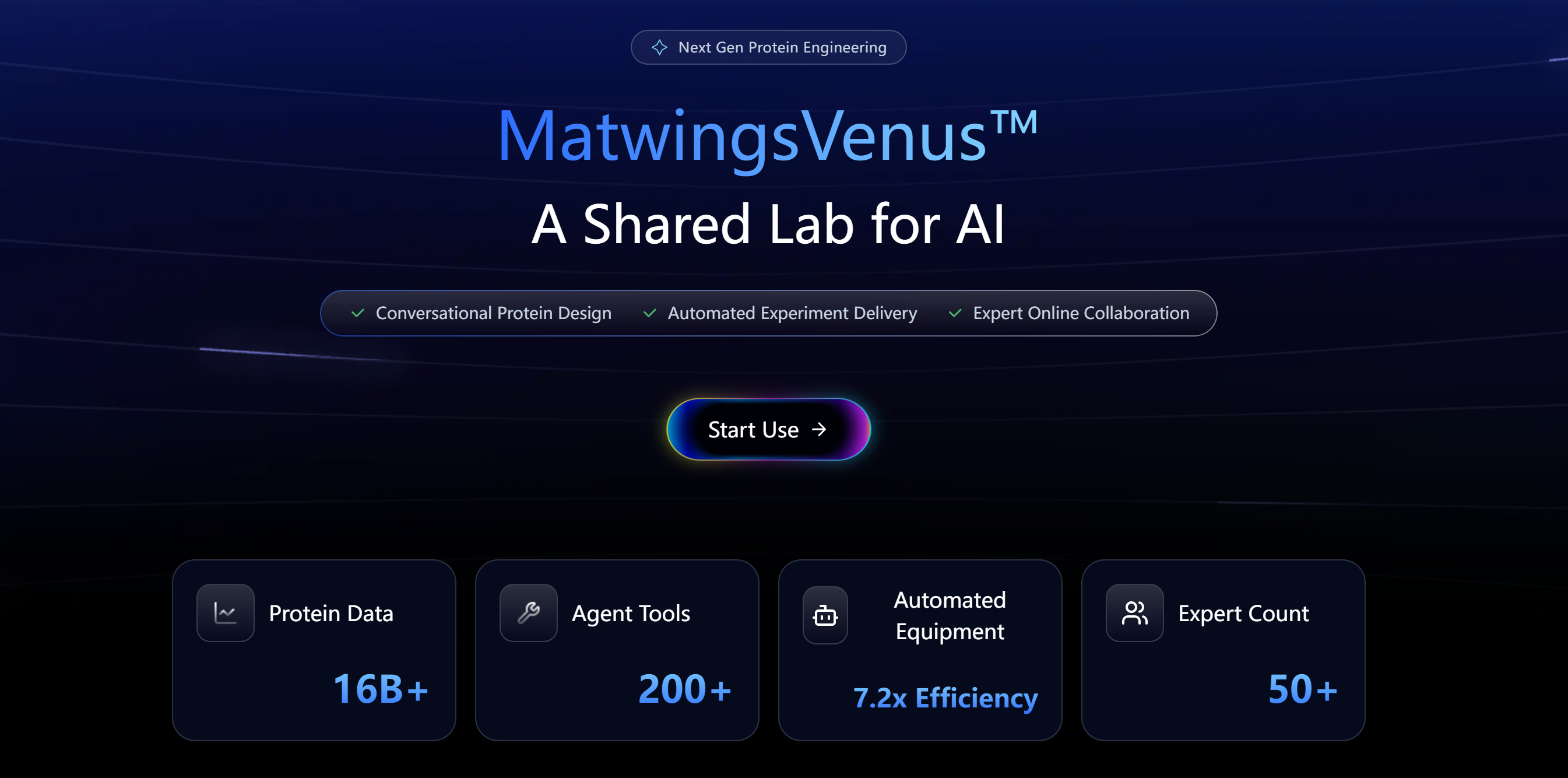
Click "Start Use" to enter the agent conversation page
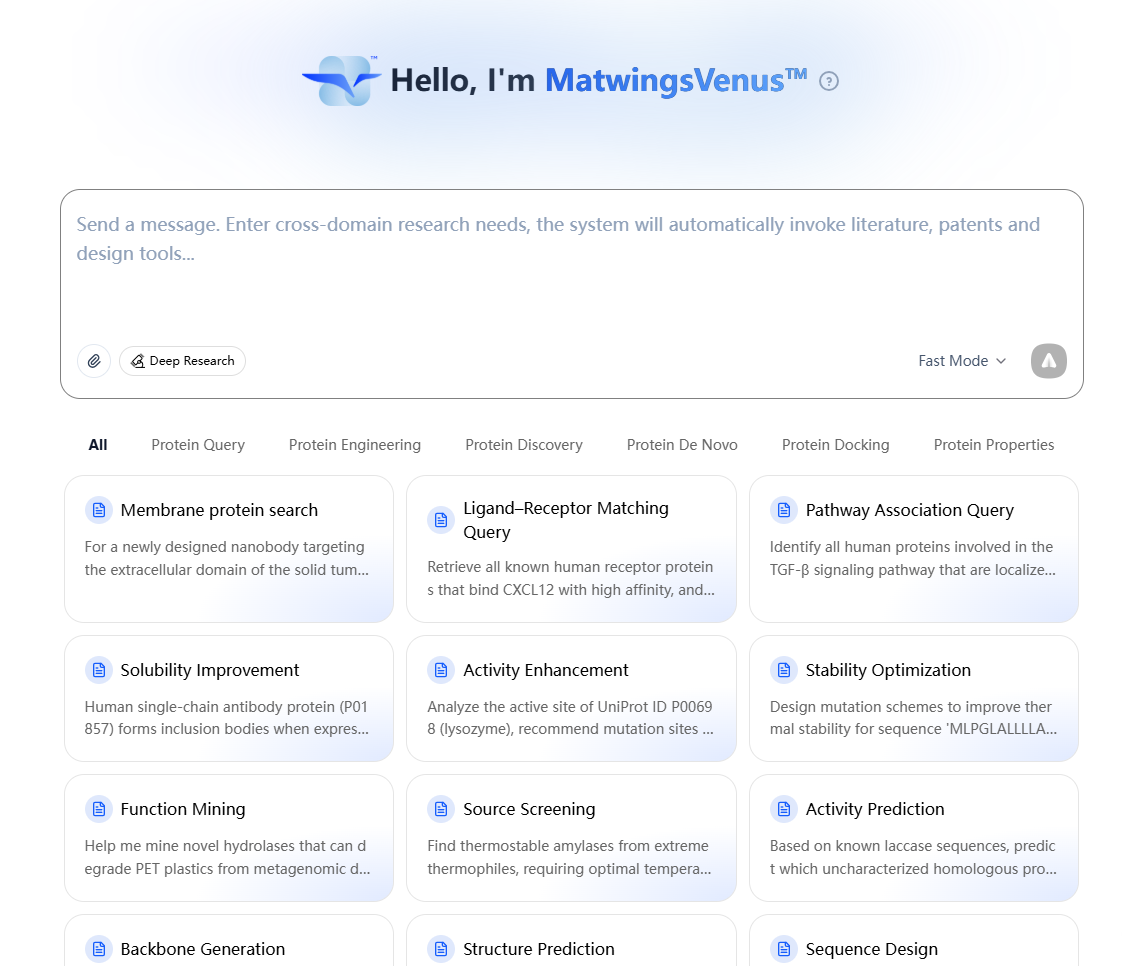
You can explore and use the platform based on the following Core Functional Modules.
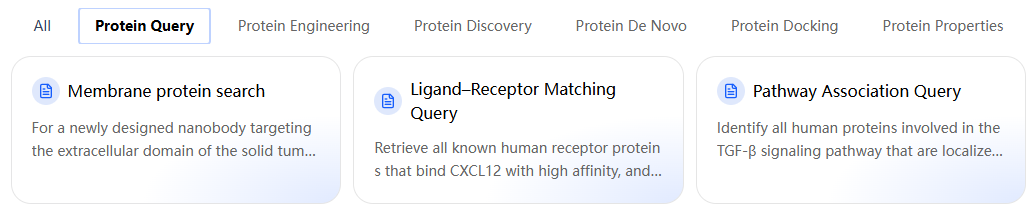




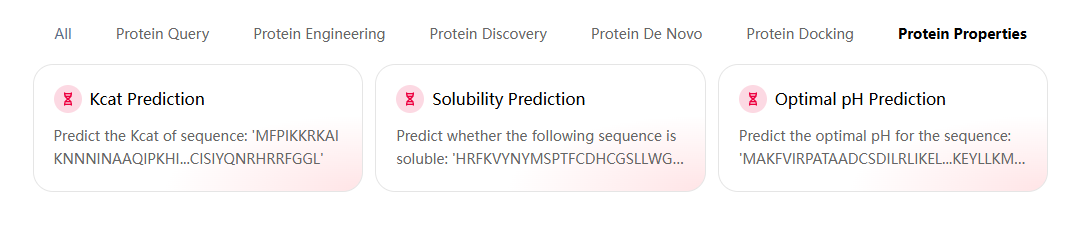
3.1 Usage Tips
📄 For detailed operations, please refer to: How to Ask Better Questions: Usage Tips
3.2 Core Functional Modules
3.2.1 Intelligent Assistant
Function Overview: Integrate cross-domain information, parse literature, assist experiments, greatly improving research efficiency.
📄 For detailed operations, please refer to: How to Ask Questions: User Guide
3.2.2 Protein Discovery
Function Overview: AI enzyme sequence mining, mining new sequences from massive metagenomic data based on functional descriptions or structural templates.
📄 For detailed operations, please refer to: How to Discover Proteins: User Guide
3.2.3 Protein Modification
Function Overview: Simulate thousands of evolutionary possibilities through AI, providing you with highly successful optimization solutions.
📄For detailed operations, please refer to: How to Engineer Proteins: User Guide
3.2.4 Protein Docking
📄For detailed operations, please refer to: How to Design and Evaluate Protein Sequences
3.2.5 Protein Properties
📄 For detailed operations, please refer to: How to Perform Protein-Ligand Docking
3.2.6 Protein Generation
📄 For detailed operations, please refer to: How to Predict Protein Properties
3.3 Wet‑Lab Experiment Services
📄 For detailed operations, please refer to: Wet‑Lab Usage Instructions
3.4 Expert Services
📄 For detailed operations, please refer to: User‑Side Guide | Expert‑Side Guide
4. Common Account Operations Guide
4.1 Forgot Password
Click “Forgot Password” on the login page
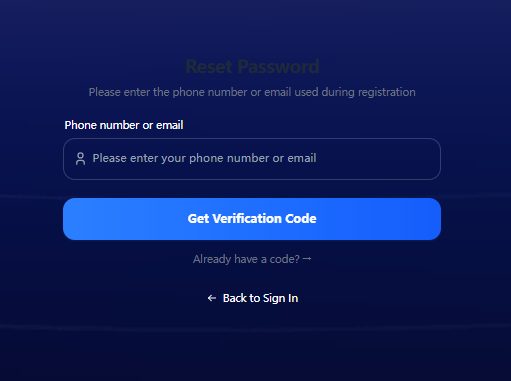
Enter your email or mobile number
Enter the verification code received via email or mobile number
Set your new password
4.2 Settings
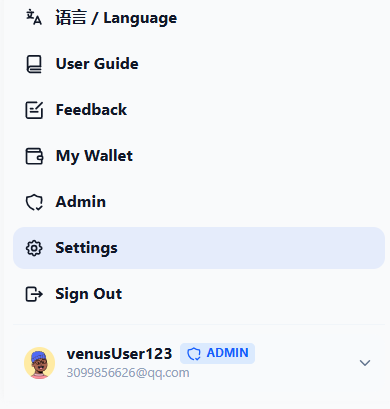
Click the avatar in the lower left corner to open the collapse box
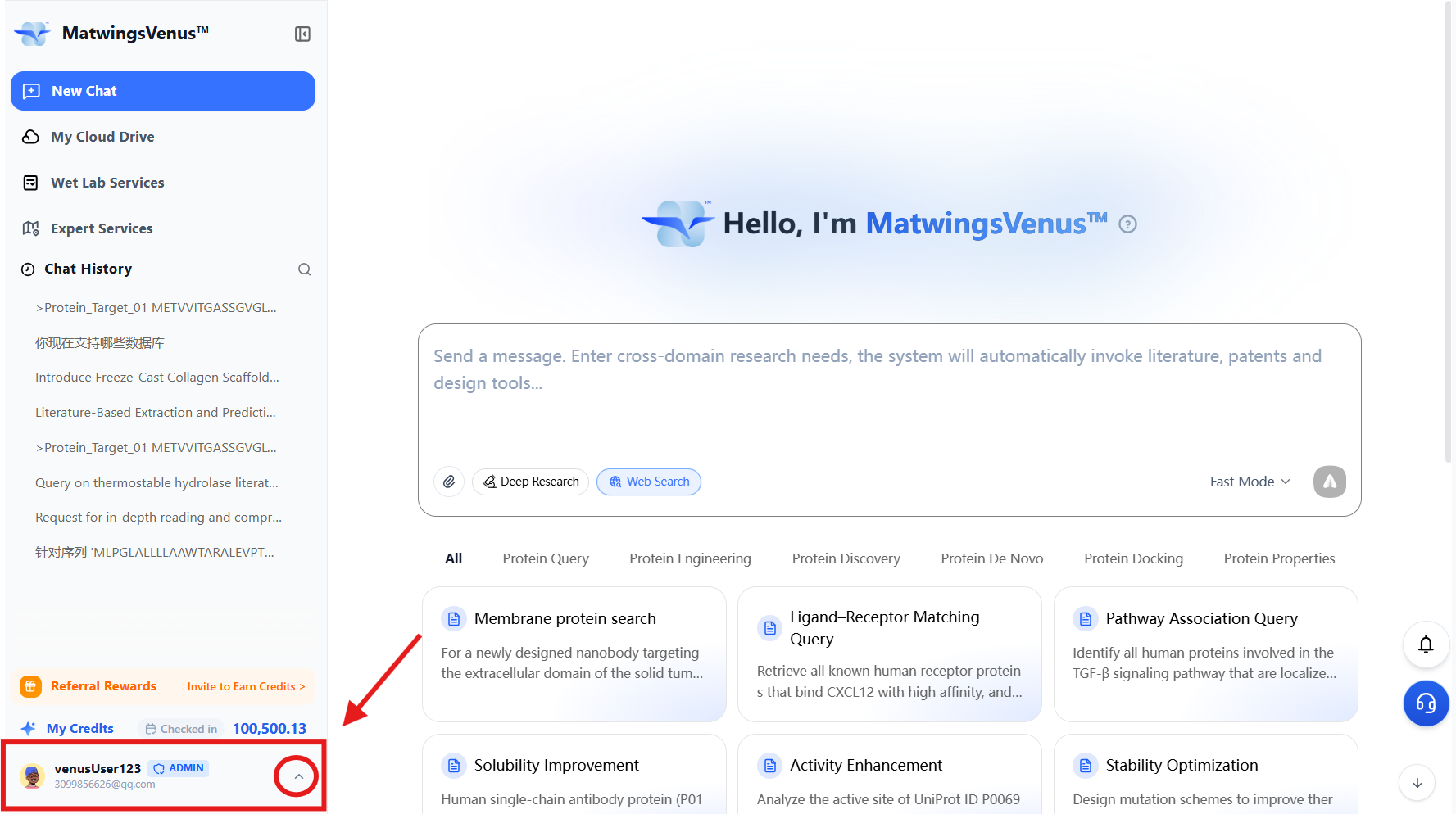
Click "Settings" to edit personal information
4.2.1 Personal Information
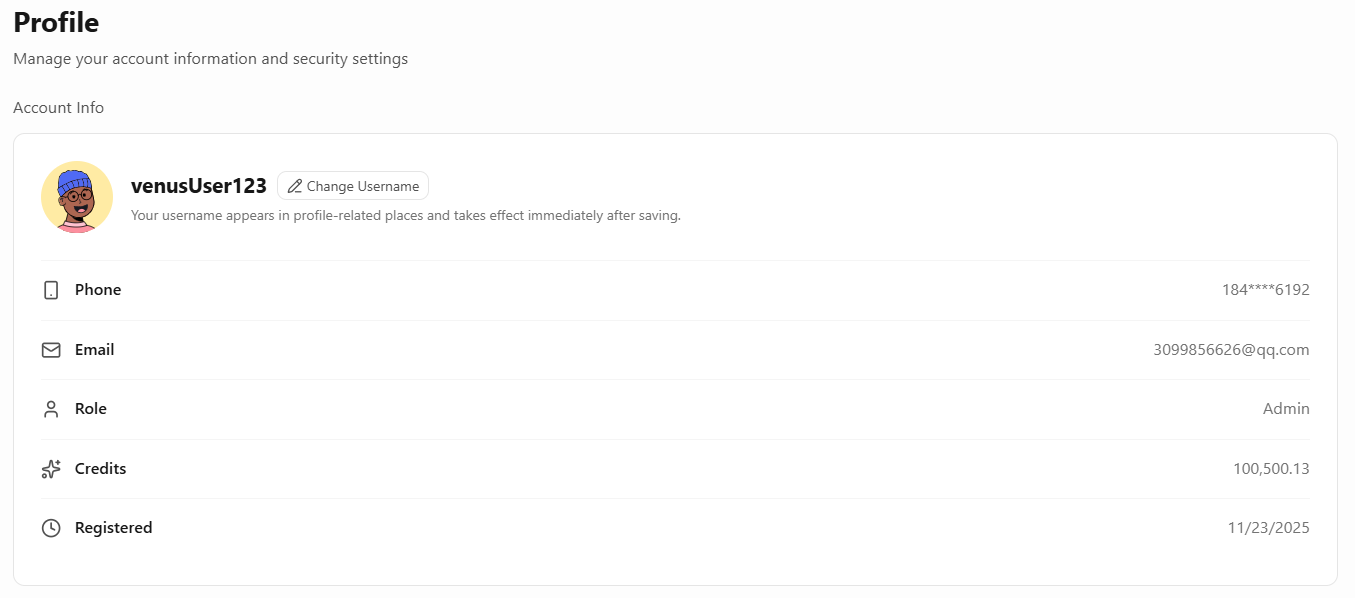
After logging in, you can view and modify personal information
Change Username: Click "Change Username" to the right of the avatar
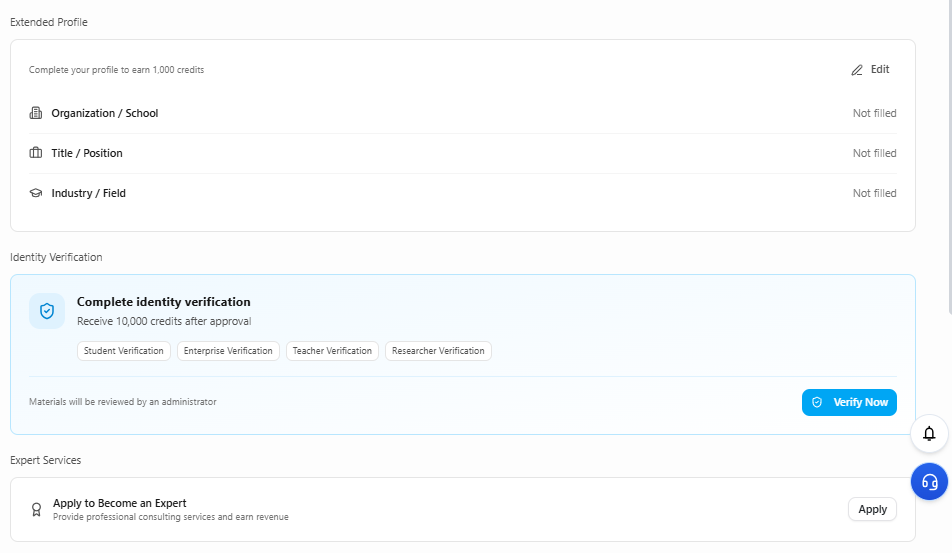
Extended Information: Filling in extended information for the first time will earn you 1000 points reward.
Identity Authentication: You can authenticate four identities: student, enterprise, teacher, researcher. Each authentication is valid for 1 year and needs to be renewed upon expiration.
Expert Services: Apply to become a platform expert, provide professional consulting services to earn income.
Change Mobile Number: You can change the bound mobile number in Personal Information (click Edit)
Change Password: You can change the bound password in Personal Information (click Edit)
Change Email: You can change the bound email in Personal Information (click Edit)
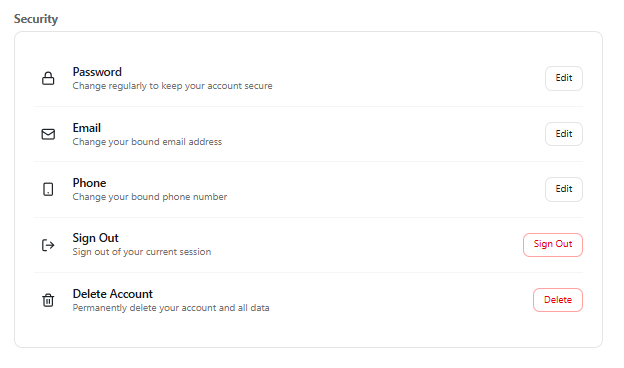
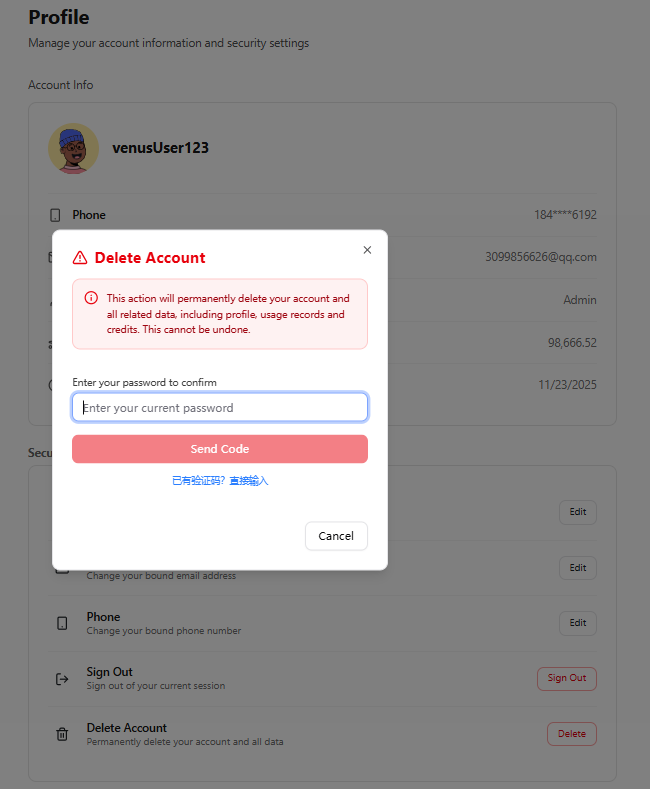
Delete account: You can apply to "Delete Account" in Personal Information (requires password verification)
4.2.2 Shipping Address
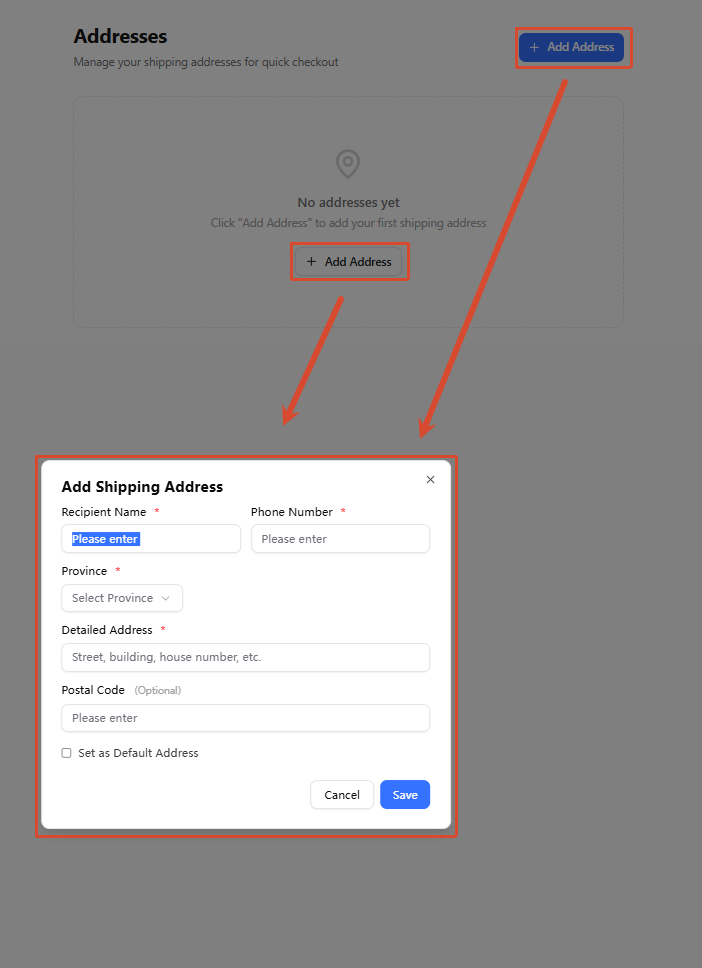
Manage harvest addresses, used for filling in when placing orders for wet-lab experiment services, etc.
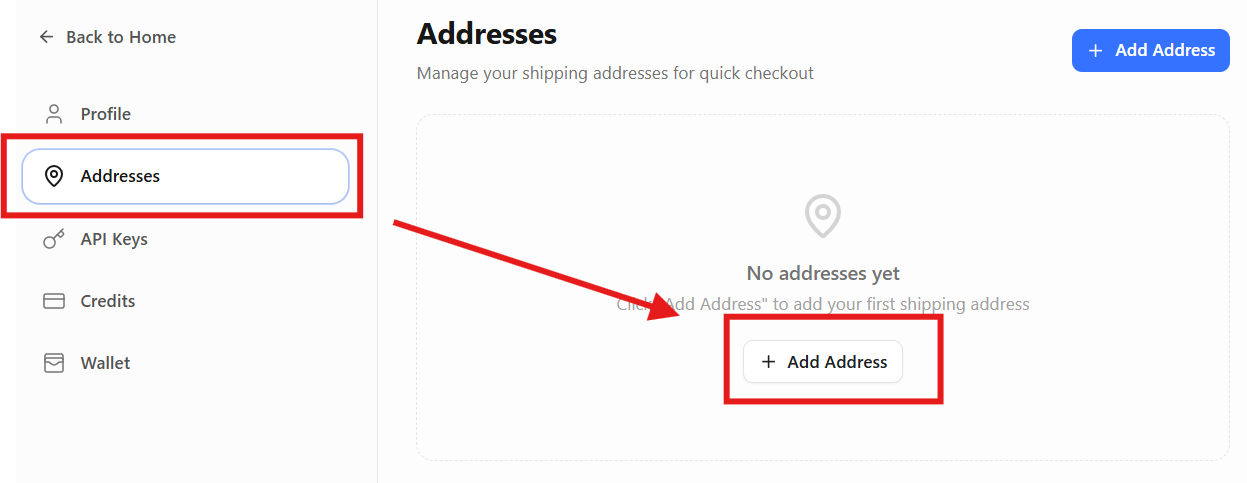
Click "Add Address", fill in the shipping address
4.2.3 API Call
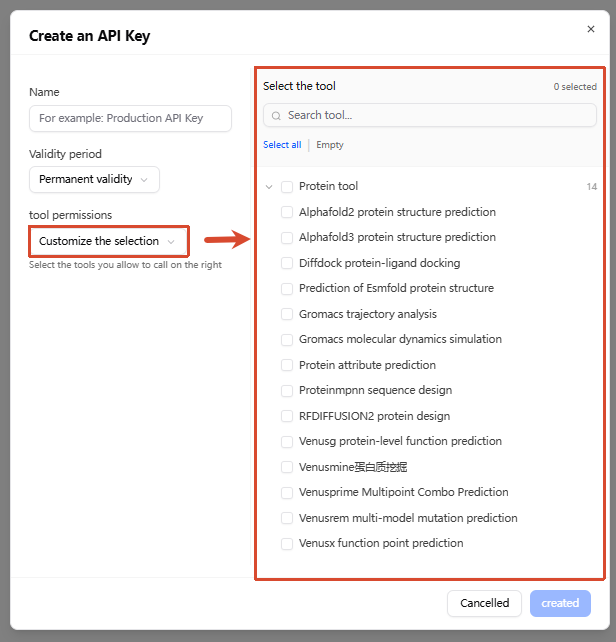
Click API KEYS in the sidebar to create your API Key for programmatic access to platform services

Click "Create" to generate a new API key, and select the "Validity Period" and "Tool Permissions" you need
The default generated API key is permanently valid and includes all tools
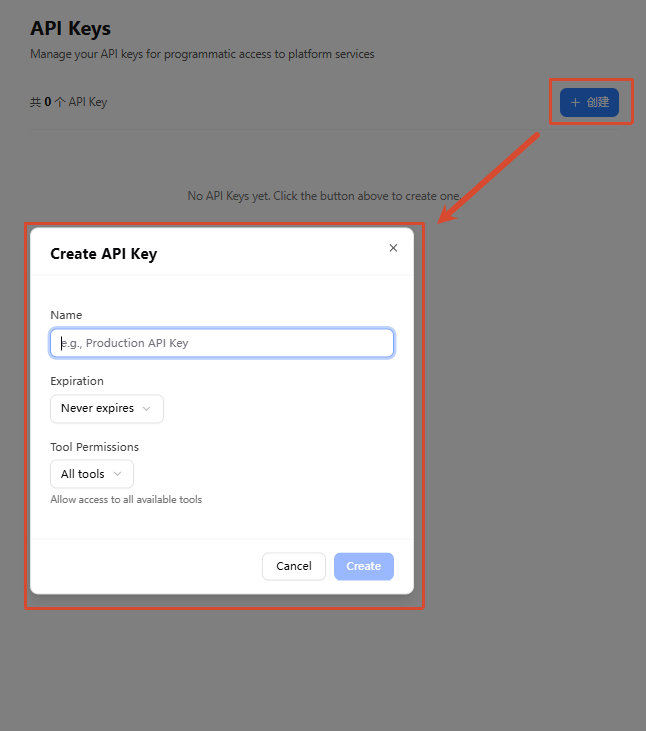
Select "Customize the Selection" in "Tool Permissions", check the required tools, and package to generate an API key
4.2.4 Credits
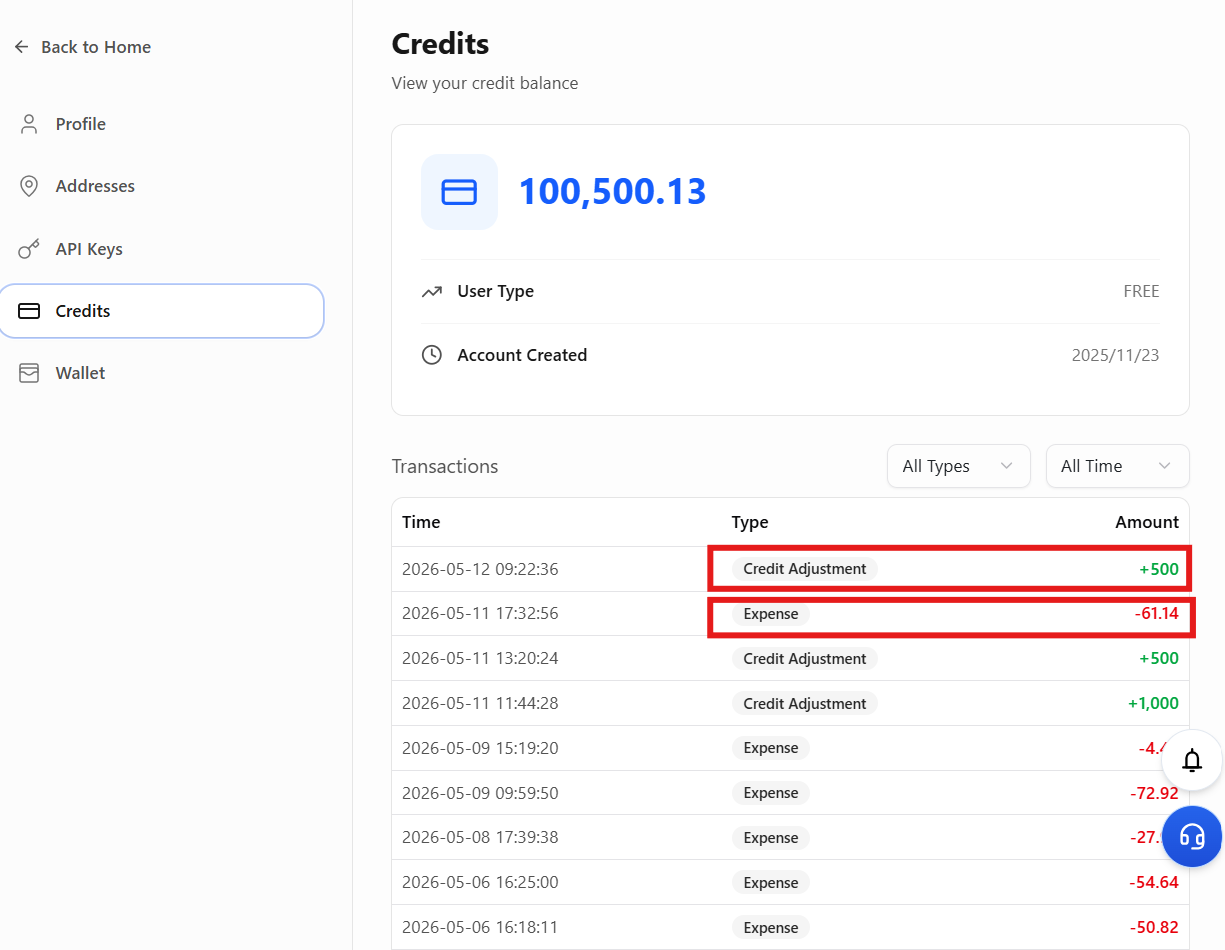
Click Credits in the sidebar to view details of points increase or consumption
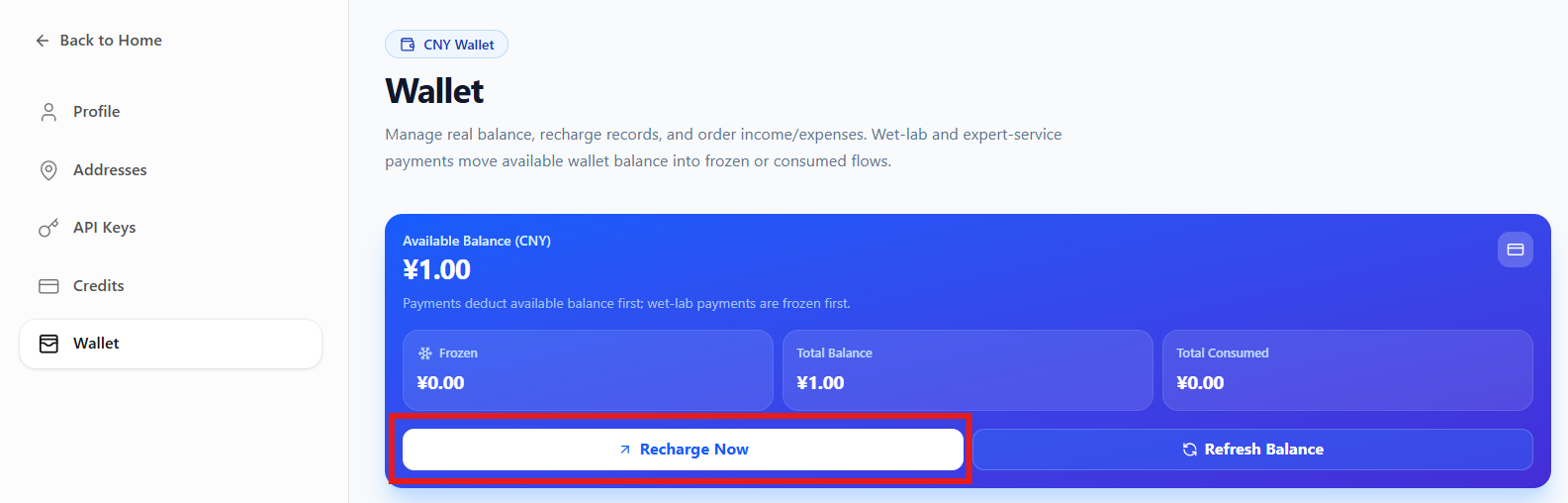
4.3 Wallet Center
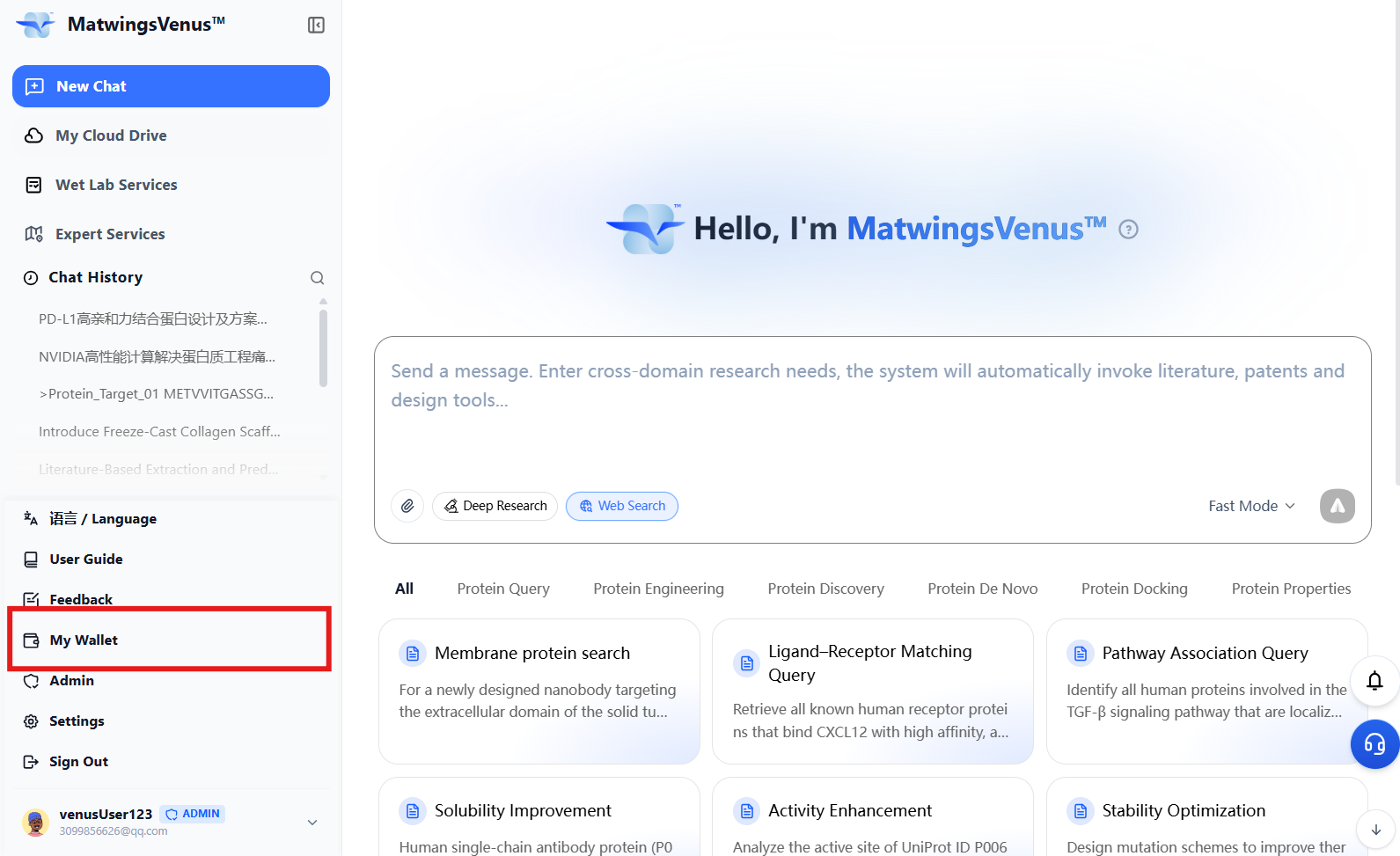
Wallet Entry: Can be accessed from the left collapse box "My Wallet" or "Settings" in the conversation interface
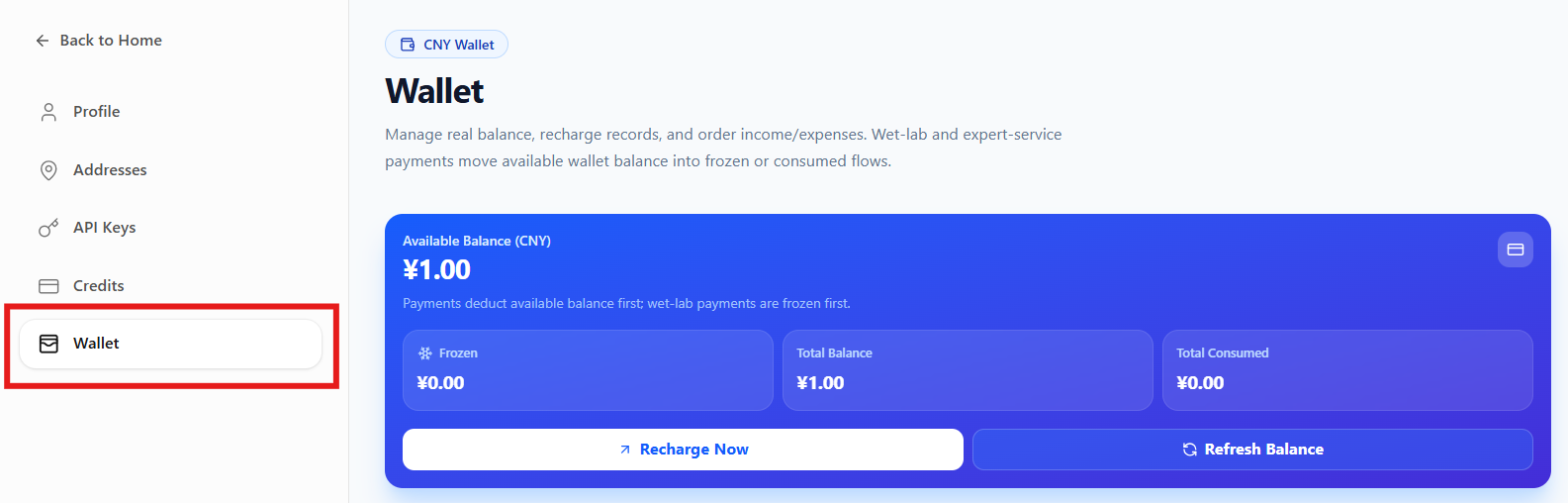
Enter recharge amount or select preset recharge amount to recharge
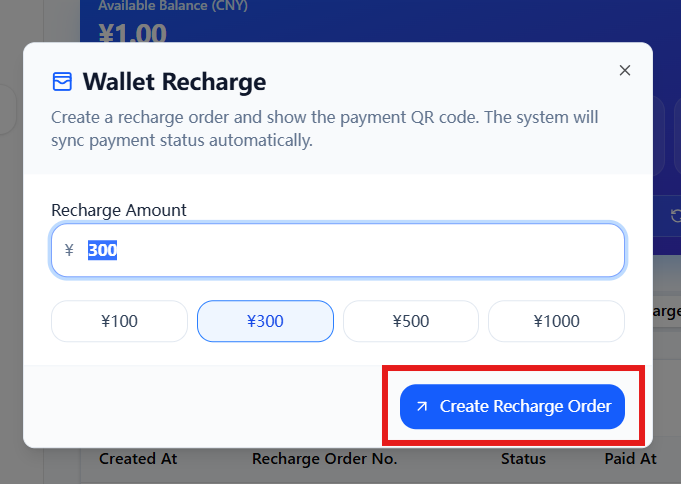
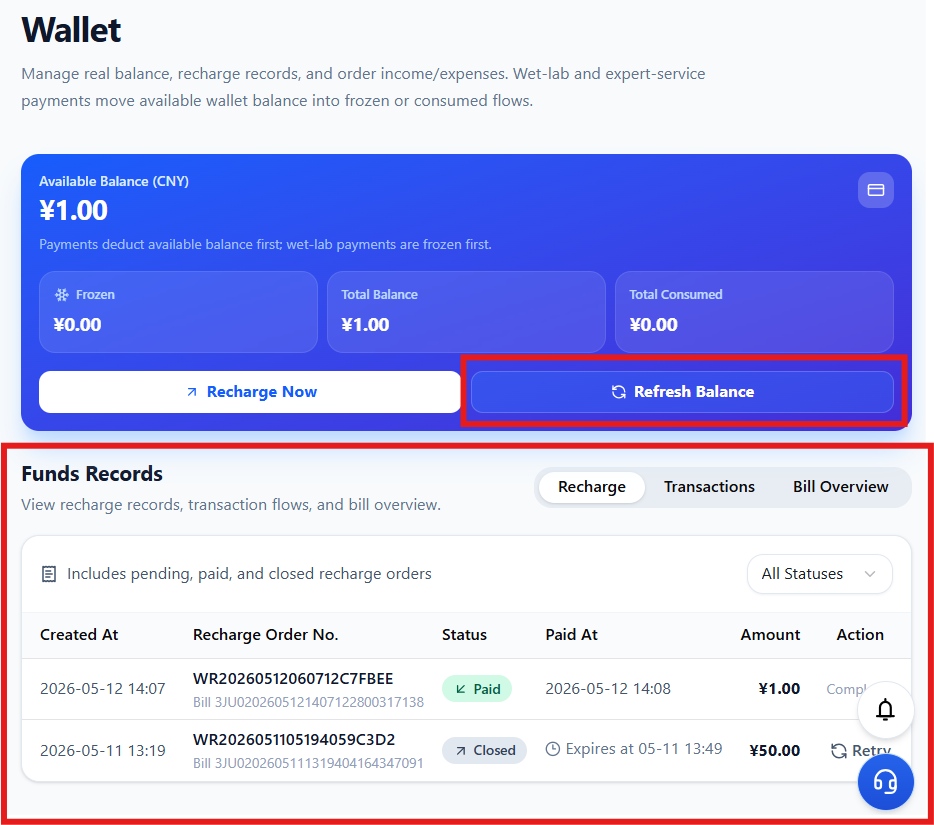
After recharging, click "Refresh Balance" to update the wallet balance
Fund records allow you to view all created order information
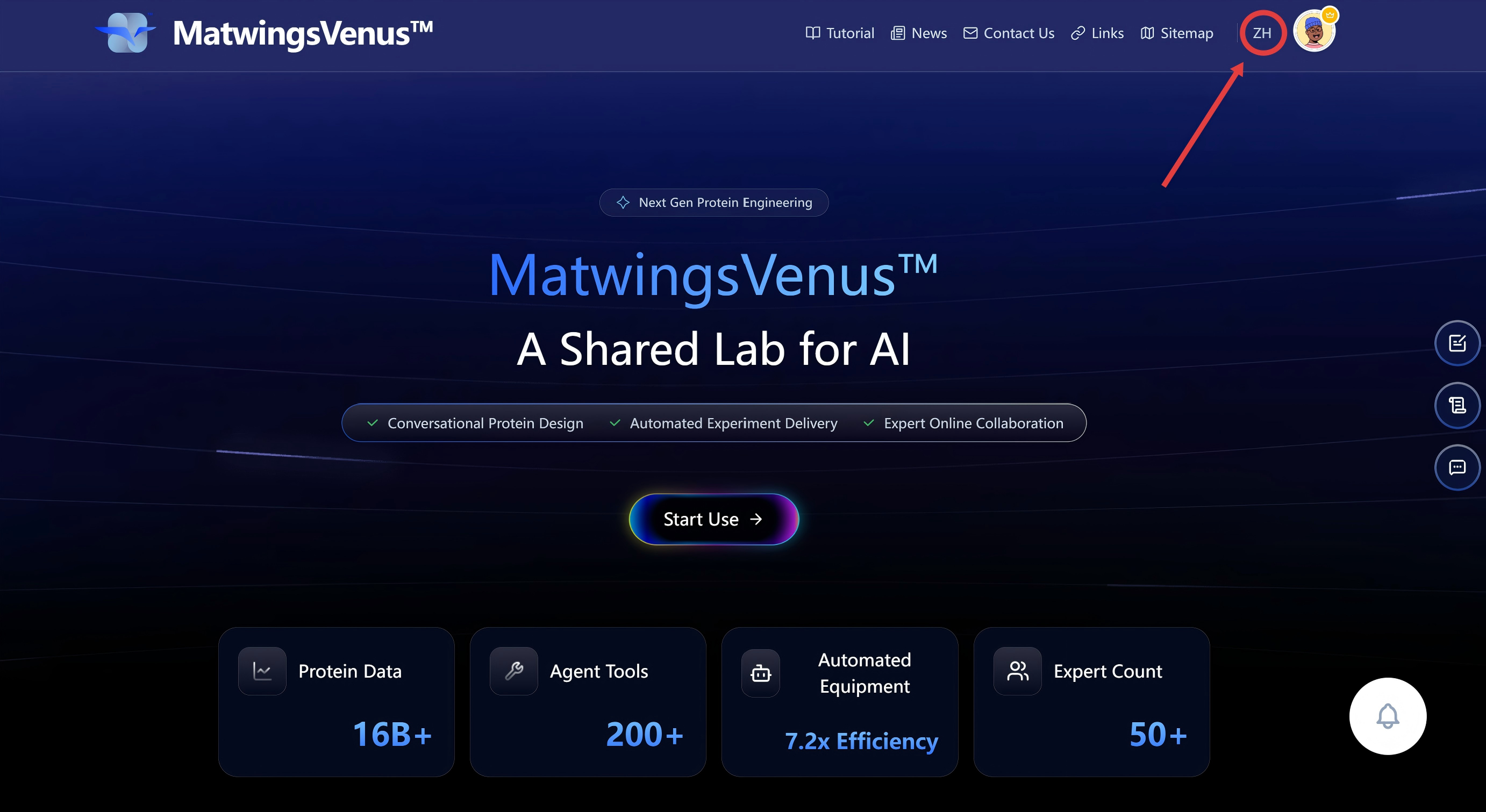
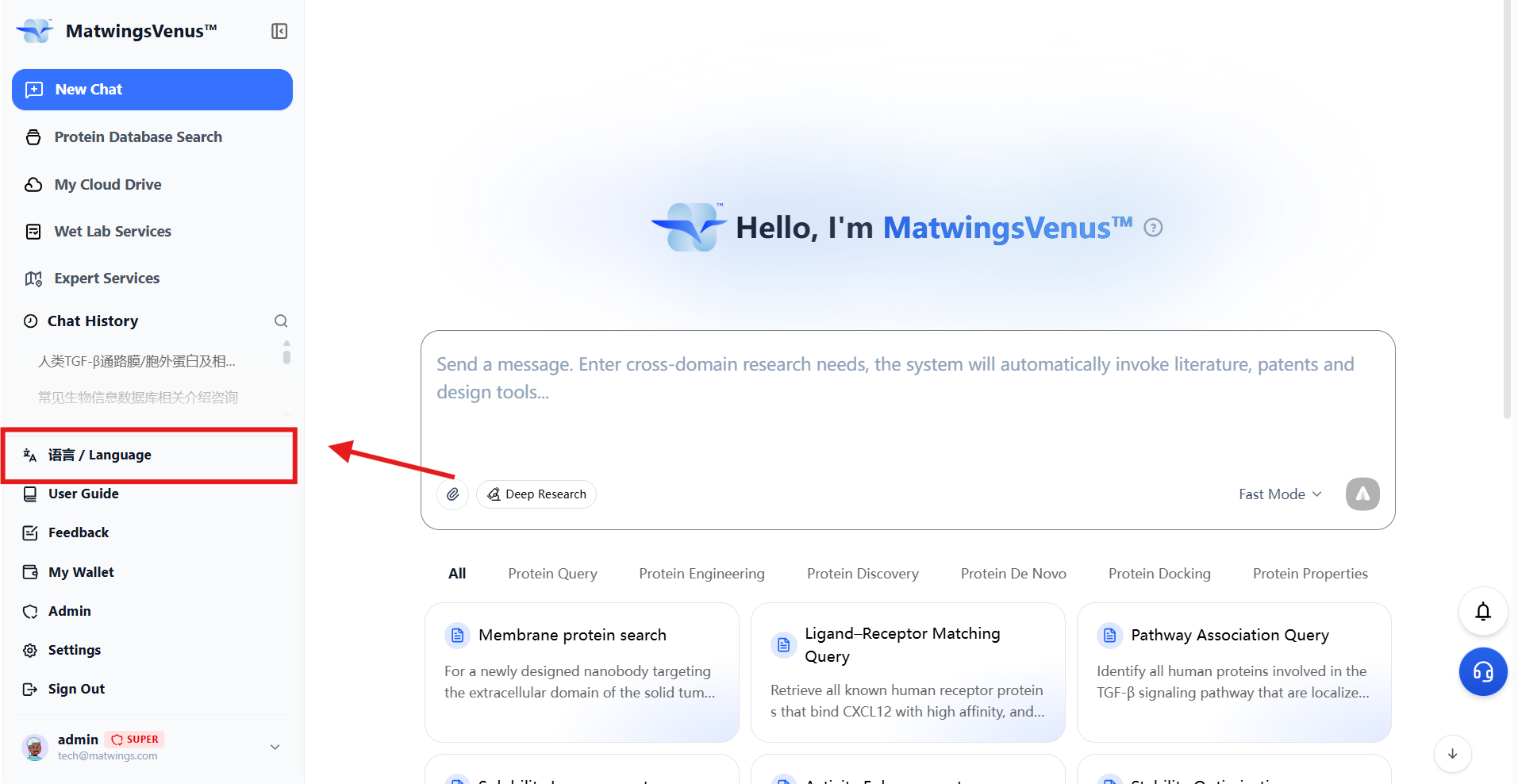
4.4 Language Switch
Located at the top right corner of the main page, next to the user avatar
After entering the conversation page, click the avatar in the lower left corner, then click the first line "语言/Language"
4.5 Points Usage
📄 For detailed operations, please refer to: How to Use Points: User Guide
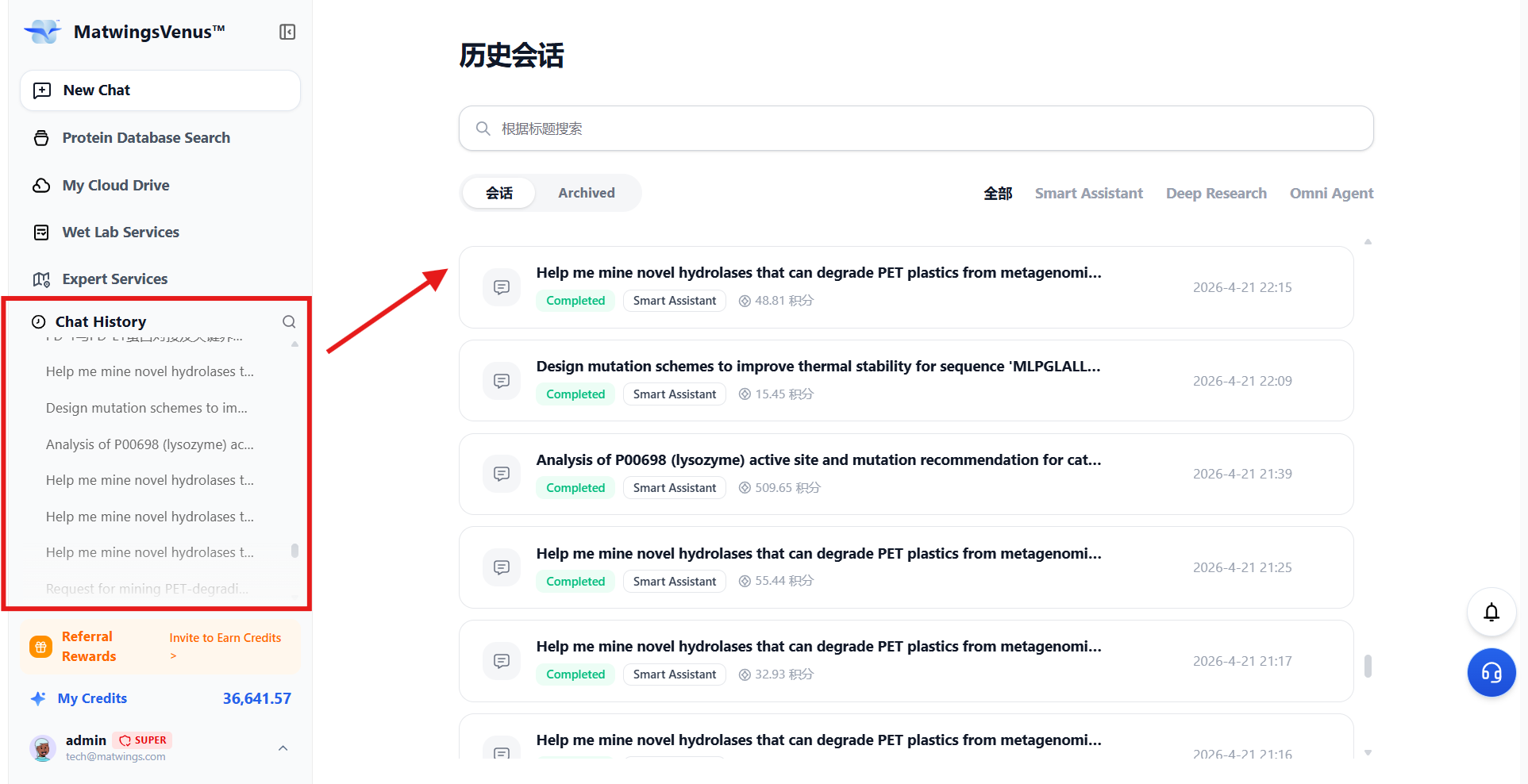
4.6 Chat History
Click to view the complete conversation history
Conversation search and filtering available
View points consumed and time of conversation
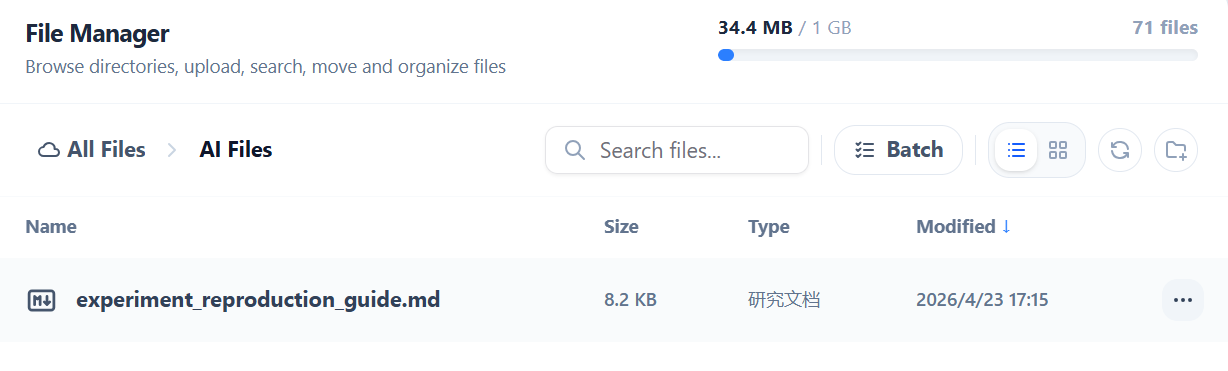
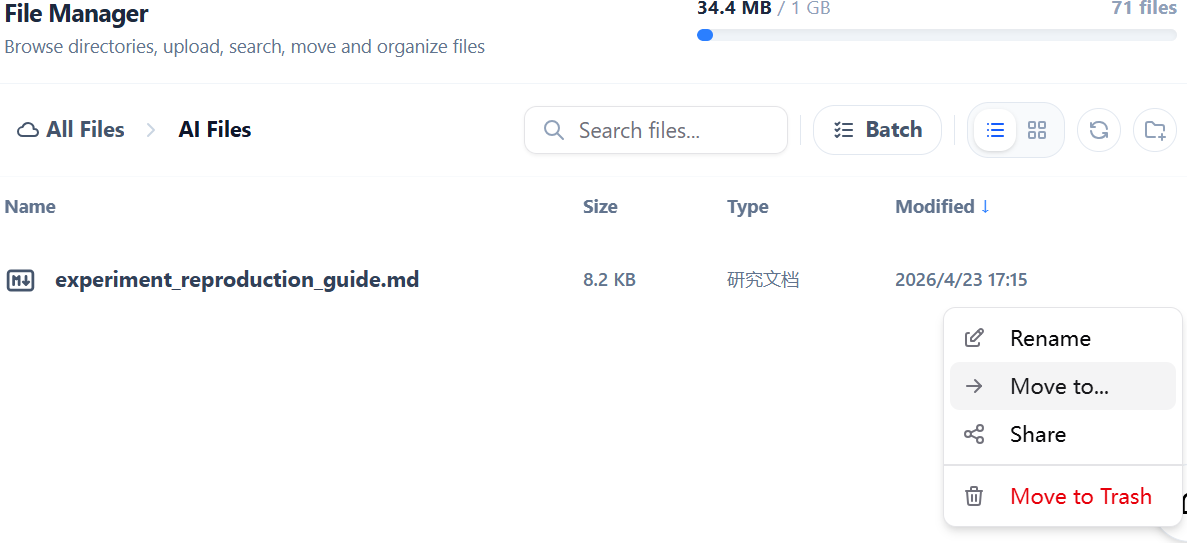
4.7 My Cloud Drive
Manage user-uploaded files and AI-generated files
Default two folders cannot be deleted or renamed
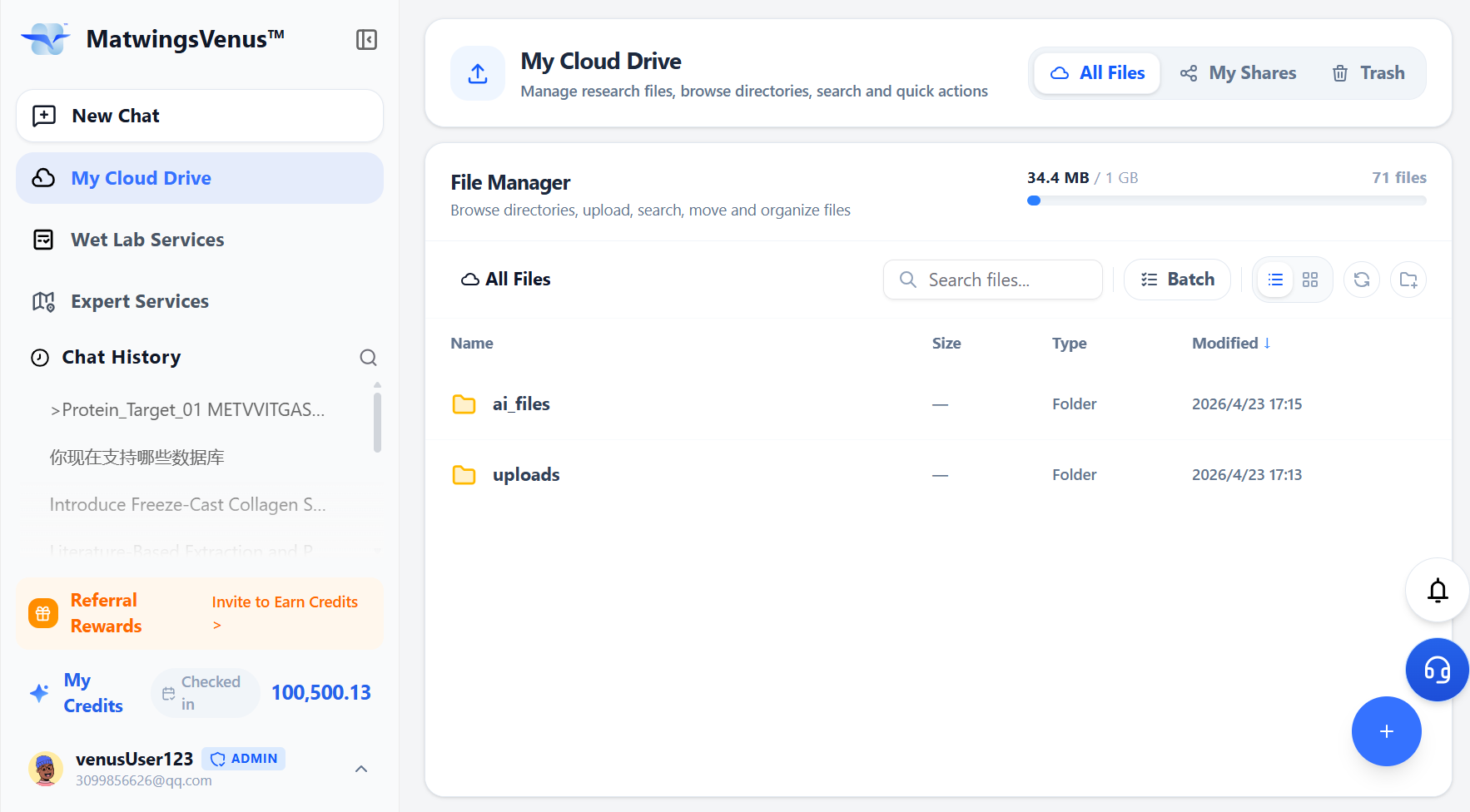
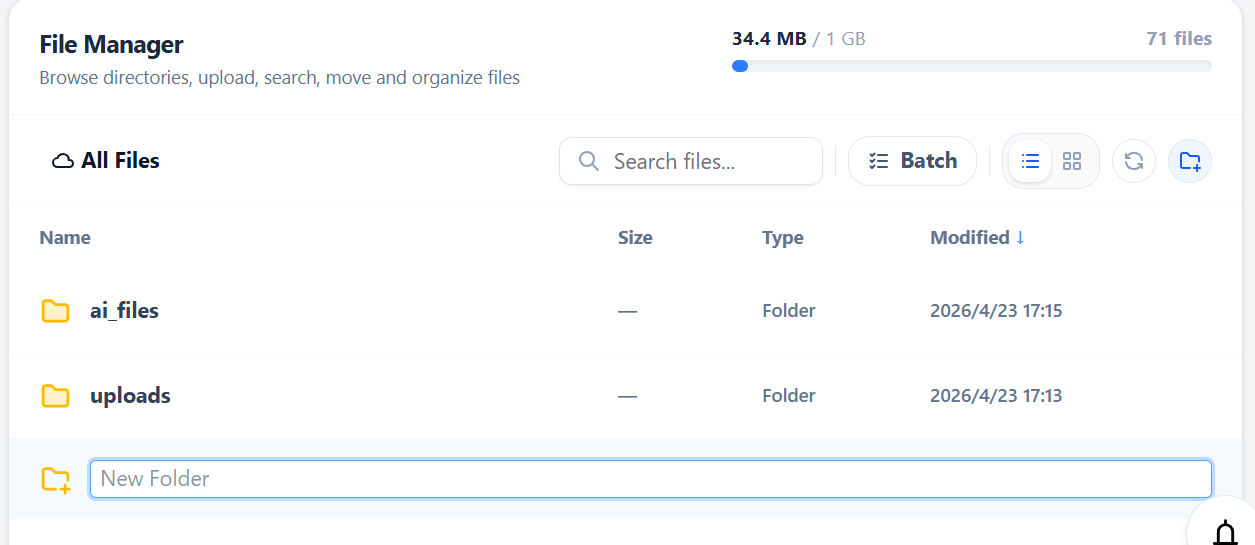
Users can create new folders, and perform operations such as moving, renaming, deleting files
Use button click or drag to modify file locations
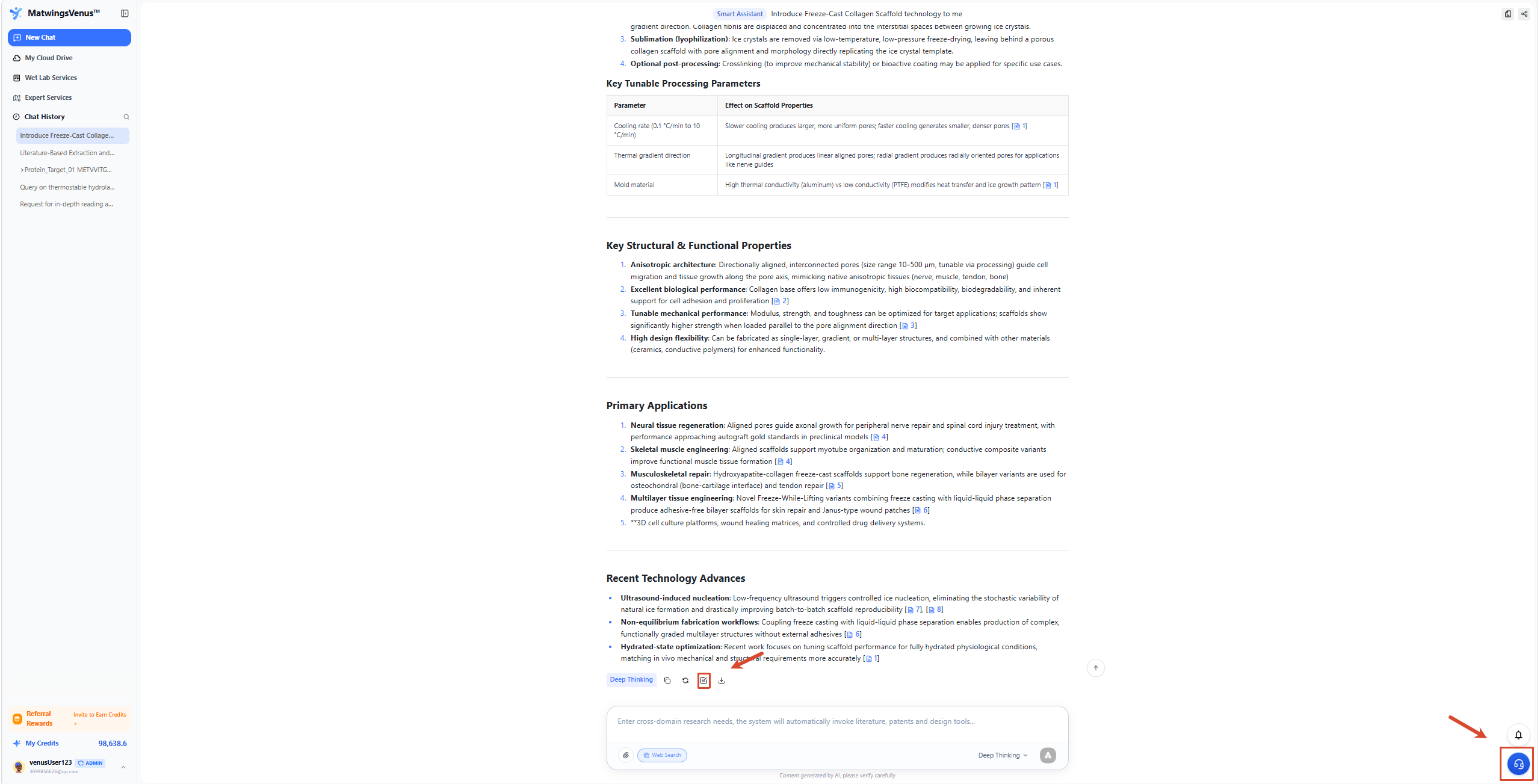
4.8 User Feedback
If you encounter problems during use, you can submit a questionnaire or contact customer service, so that we can solve your problems more quickly.
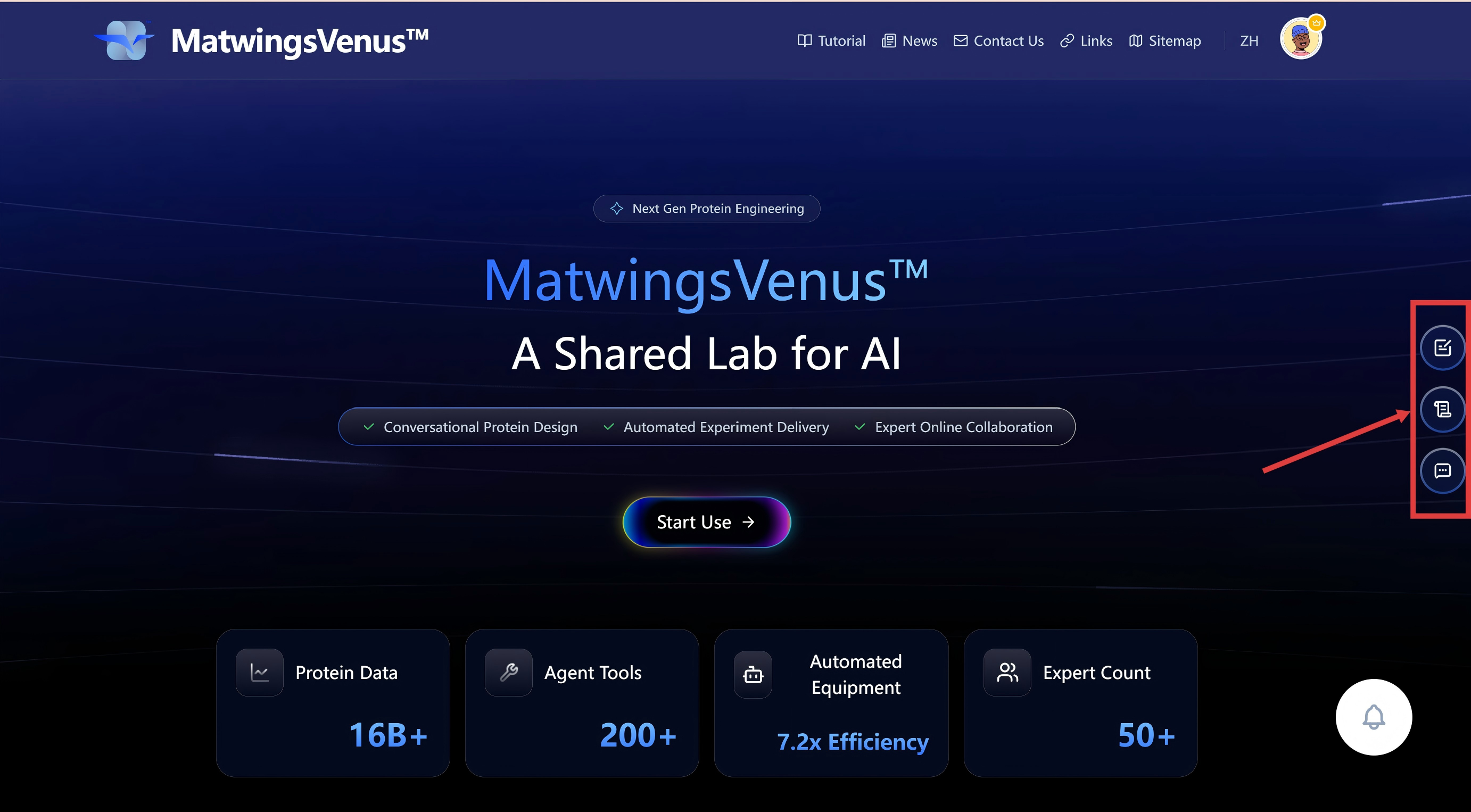
4.8.1 Main Page - Far Right
Quick Feedback
Questionnaire Survey
Scan Code to Join Group
4.8.2 Function Page
Lower left side: User Feedback
Lower right side: Contact Customer Service
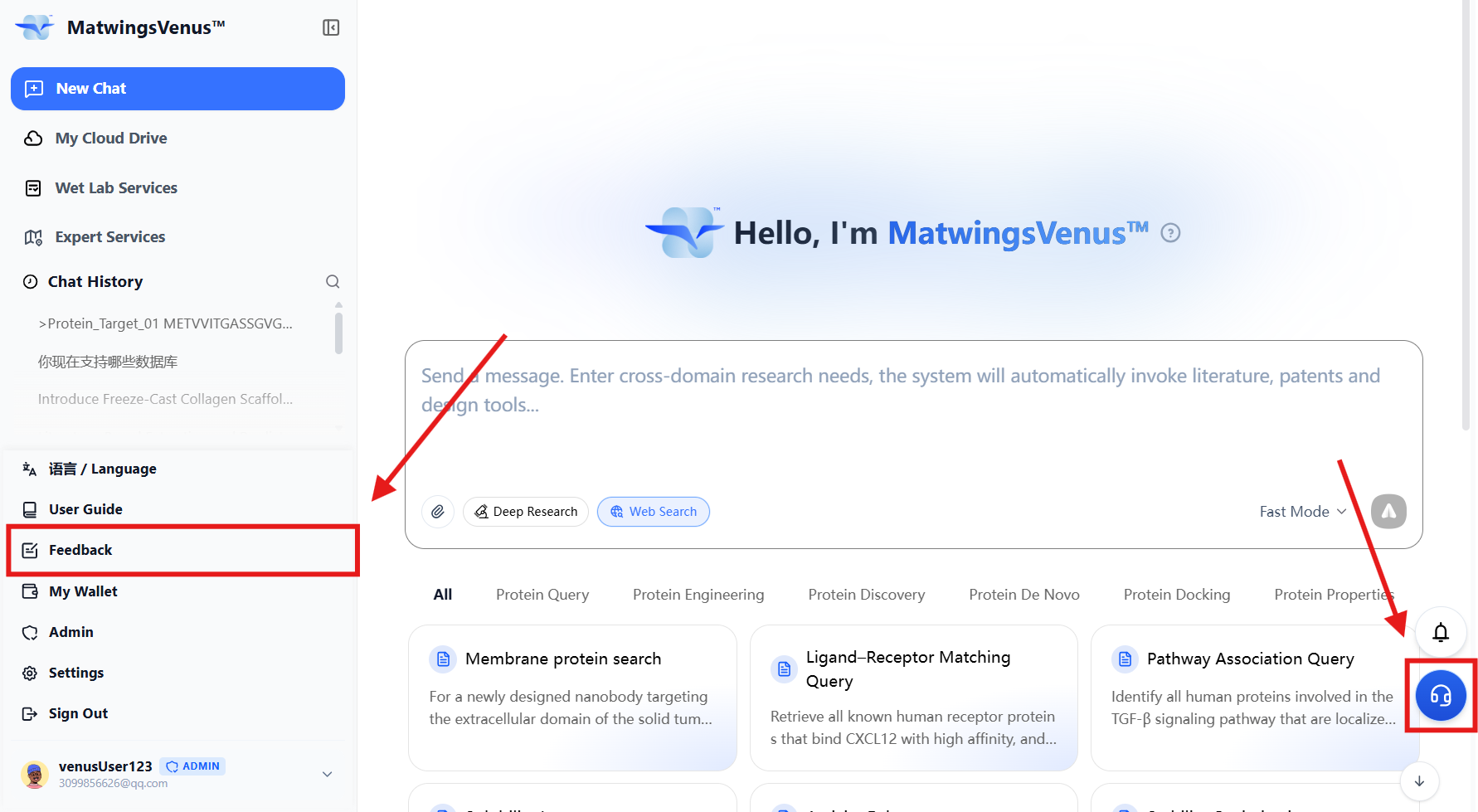
4.8.3 Chat Page
Below the conversation: Feedback (default feedback for current conversation content)
Lower right corner of the page: Contact Customer Service
5.Frequently Asked Questions
Q: Will research results be saved?
A: Yes, the history is saved in the account; test data will be retained for 1 month after official launch.
Q: What if I forget my password?
A: Click "Forgot Password" on the login page and reset via email verification code.
Q: How to get more accurate results?
A: Provide PDB structure file; clarify experimental throughput; upload wet-lab experiment data in engineering tasks.
Q: What if I run out of credits?
A: When points are insufficient, you can obtain them through event rewards, recharging, subscriptions, etc. For details, please see "Points Acquisition, Usage, and Pricing Rules".
The commercialization copyright of the platform design and products belongs to Tianwu